Tuesday, February 26

how does an mp3 player works??

The MP3 player is the most recent in an evolution of music formats that have helped consumers enjoy their tunes. Records, 8-track tapes, cassette tapes and CDs -- none of these earlier music formats provide the convenience and control that MP3 players deliver. With an MP3 player in hand or pocket, a consumer can create personalized music lists and carry thousands of songs wherever they go.

MP3 File Format:- The MP3 file format revolutionized music distribution in the late 1990s, when file-swapping services and the first portable MP3 players made their debut. MP3, or MPEG Audio Layer III, is one method for compressing audio files. MPEG is the acronym for Moving Picture Experts Group, a group that has developed compression systems for video data, including that for DVD movies, HDTV broadcasts and digital satellite systems. Using the MP3 compression system reduces the number of bytes in a song, while retaining sound that is near CD-quality. Anytime you compress a song, you will lose some of its quality, which is the trade-off for the ability to carry more music files in a smaller storage system. Here are a few of the file formats that can be played on different players: * WMA - Windows Media Audio * WAV - Waveform Audio * MIDI - Music Instrument Digital Interface. * AAC - Advanced Audio Coding * Ogg Vorbis - A free, open and un-patented music format * ADPCM - Adaptive Differential Pulse Code Modulation * ASF - Advanced Streaming Format * VQF - Vector Quantization Format * ATRAC - Sony's Adaptive Transform Acoustic Coding 3


The Technology:-

Unlike earlier forms of music players that required moving parts to read encoded data on a tape or CD, MP3 players use solid-state memory. An MP3 player is no more than a data-storage device with an embedded software application that allows users to transfer MP3 files to the player. MP3 players also include utilities for copying music from the radio, CDs, radio or Web sites and the ability to organize and create custom lists of songs in the order you want to hear them. This list of songs is called a playlist.

The MP3 player is the convergence of many technol
ogies. Alone, none of its components are revolutionary, but together they create an unprecedented consumer product.

Specific components may vary, but here are the basic parts of a typical MP3 player:

* Data port
* Memory

* Microprocessor
* Digital signal processor (DSP)
* Display
* Playback controls
* Audio port
* Amplifier
* Power supply

The player plugs into your computer's USB port, FireWire port or parallel port to transfer data. USB-based players transfer data many times faster than those that use the parallel port. The MP3 files are saved in the player's memory. Memory types include: * Internal Flash memory * CompactFlash cards * SmartMedia cards * Memory Stick * Internal microdrive With the exception of the last one, these are all types of solid-state memory. The advantage to solid-state memory is that there are no moving parts, which means better reliability and no skips in the music. MP3 players that contain tiny hard disk drives can store 10 to 150 times more than Flash memory devices can. The microprocessor is the brains of the player. It monitors user input through the playback controls, displays information about the current song on the LCD panel and sends directions to the DSP chip that tells it exactly how to process the audio. In addition to storing music, the MP3 player must play music and allow the user to hear the songs played. To do this, the player: * Pulls the song from its memory. * Decompresses the MP3 encoding, through DPS, via an algorithm or formula. * Runs the decompressed bytes through a digital-to-analog converter into sound waves. * Amplifies the analog signal, allowing the song to be heard. All of the portable MP3 players are battery-powered. Most use a rechargeable internal lithium battery and last for approximately 10 to 28 hours on a single charge. Many of the players also have AC adapters so they can be plugged into a normal electrical outlet, and some even offer DC adapters for use in a car.


Types of MP3 Players:-
MP3 players are as varied as the people who buy them. Choice is based on several factors, including how you plan to use it, the amount of music you want to carry in your MP3 player and how much you are prepared to pay. Let's take a look at the four basic types of MP3 players.
The Apple iPhone is an example of a flash drive. Courtesy Consumer Guide Products The Apple iPhone has a 4 GB or 8 GB flash drive.

Flash Memory Players

The flash memory MP3 player is the smallest and lightest and typically stores fewer songs than hard drive players. Because it's small and contains no moving parts, it's ideal for exercisers. And with some models boasting up to 8 GB of storage (2,000 songs) and other models offering video and photo capability, it also appeals to the multimedia aficionado. Its batteries can last up to 28 hours.

Hard Drive and Mini-hard Drive Players:
\
Hard drive players are larger and heavier than flash memory players and offer considerably more storage. (The Apple iPod holds up to 80GB.) For those looking for a player that can contain their entire music collection (up to 20,000 songs), photographs, data, and video and allow podcast recording, the hard drive is best. However, these features and the hard drive consume more power, with some batteries lasting eight to 20 hours for music playback and up to six hours for video playback. The players include moving parts, which may skip. However, some players have anti-shock buffers and or anti-skip protection. Smaller in size and internal storage capacity, miniature-hard drive players are lighter than traditional hard drive players, but contain less memory -- usually up to 8 GB. They, too, contain moving parts.

MP3 CD Players and MiniDisc MP3 Players;

There is a breed of CD players available that plays MP3 and other digital files. These MP3 files are burned to CD-R/RW discs from your old CD collection and used in the MP3 CD player. A CD can hold about 10 hours of music. A CD burner is necessary for those buying an MP3 CD player. The MP3 CD player is cheaper than the flash memory and hard drive memory players, but may skip when jostled. They are also much larger in size than their digital counterparts. Myvu video goggles connect to an iPod and project sound and “floating video images.” Photo courtesy Damien Dovarganes/ Associated Press Myvu video goggles connect to an iPod and project sound and “floating video images.” For those who appreciate MiniDisc technology, there's Sony's MiniDisc Walkman digital music player. This player supports the trademark Sony file format codec ATRAC3 -- but it also supports MP3, WMA and WAV formats, too. And the multitasking doesn't stop there. Sony reports that the 1GB Hi-MD discs can also store and transfer loads of PC data files (think PowerPoint presentations, spreadsheets, et cetera). The discs retail for less than $10, store up to 600 songs and are re-recordable. Depending on the model, users can expect anywhere from 30-plus hours of playtime from just one AA battery.

The Hybrid Players
MP3 is no longer just a stand-alone technology. Technology companies are now offering MP3 capability in other consumer products, including satellite radios, personal digital assistants, DVD players, sunglasses, swim goggles and even a combination Swiss Army Knife-MP3 player. Most notably, the iPhone from Apple crosses a cell phone with an iPod and Web browser, along with a variety of other features.

Sunday, February 24

FiReWiRe---cOmPlEtE iNfo....

FireWire is Apple Inc.'s brand name for the IEEE 1394 interface (although the 1394 standard also defines a backplane interface). It is also known as i.LINK (Sony's name) and DV (Panasonic's name, not to be confused with DV camcorder tapes). It is a serial bus interface standard, for high-speed communications and isochronous real-time data transfer, frequently used in a personal computer (and digital audio/digital video).

FireWire has replaced Parallel SCSI in many applications, due to lower implementation costs and a simplified, more adaptable cabling system. IEEE 1394 has been adopted as the High Definition Audio-Video Network Alliance (HANA) standard connection interface for A/V (audio/visual) component communication and control[1]. FireWire is also available in wireless, fiber optic, and coaxial versions using the isochronous protocols. Wireless FireWire is being integrated into the WiMedia Alliance's WiMedia Ultra-Wideband (UWB) standard.


Almost all modern digital camcorders have included this connection since 1995. Since 2003 many computers intended for home or professional audio/video use have built-in FireWire/i.LINK ports, including all Sony computers, all but one of Apple's computers, and most Dell and HP models currently produced. It is also available on many retail motherboards for do-it-yourself PCs.


Technical specifications

FireWire can connect up to 63 peripherals in a tree topology (as opposed to Parallel SCSI's Electrical bus topology). It allows peer-to -peer device communication — such as communication between a scanner and a printer — to take place without using system memory or the CPU. FireWire also supports multiple hosts per bus. It is designed to support Plug-and-play and hot swapping. Its six-wire cable is more flexible than most Parallel SCSI cables and can supply up to 45 watts of power per port at up to 30 volts, allowing moderate-consumption devices to operate without a separate power supply. (As noted earlier, the Sony-branded i.LINK usually omits t he power wiring of the cables and uses a 4-pin connector. Devices have to get their power by other means.)

FireWire devices implement the ISO/IEC 13213 "configuration ROM" model for device configuration and identification, to provide plug-and-play capability. All FireWire devices are identified by an IEEE EUI-64 unique identifier (an extension of the 48-bit
Ethernet MAC address format) in addition to well-known codes indicating the type of device and the protocols it supports.

Operating system support

Full support for IEEE 1394a and 1394b is available for FreeBSD, Linux, Apple Mac OS 8.6 through to Mac OS 9[5], and Mac OS X as well as NetBSD and Haiku. Microsoft Windows XP supports both, but as of Service Pack 2, each FireWire device will run at S100 (100 Mbit/second) speed. A download is available from Microsoft which enables devices rated at S400 or S800 speeds to operate at their rated speed.[6] Some FireWire hardware manufacturers also provide custom device drivers which replace the Microsoft OHCI host adapter driver stack, enabling S800-capable devices to run at full 800 Mbit/s transfer rates. Microsoft Windows Vista currently supports only 1394a, with 1394b support coming later in a service pack. (Vista SP1 RC1 is available from mid December 2007, with full release expected during the first quarter of 2008)


Comparison to USB

Although high-speed USB 2.0 runs at a higher signaling rate (480 Mbit/s) than FireWire 400, typical USB PC-hosts rarely exceed sustained transfers of 35 MB/s (280 Mb/s), with 30 MB/s (240 Mb/s) being more typical (the theoretical limit for a USB 2 high-speed bulk transfer is 53.125 MB/s). This is likely due to USB's reliance on the host-processor to manage low-level USB protocol, whereas FireWire automates the same tasks in the interface hardware. For example, the FireWire host interface supports memory-mapped devices, which allows high-level protocols to run without loading the host CPU with interrupts and buffer-copy operations.[13]

FireWire 800 is substantially faster than Hi-Speed USB.

Sunday, February 17

Computer Speakers...know More.

Computer Speakers...know More.


Adding speakers to your computer can increase its functionality and enriches the experience of using it. Computer speakers are functional devices that are attached to the computer and are very much useful for recreation as well as other activities. These not only produce the most exciting sound but also are capable of bringing music, movies or games to life.

In today's scenario where we can find all sorts of multimedia applications, games and MP3 music, it is very hard to imagine a computer without speakers. They have become essential for any computer so that it can be used for all the applications. With time these have seen many changes and are getting better. We can find them for all applications and budgets.

The most popular type of speakers available today are standard, multi-channel surround sound, and USB speakers. Lets learn more about them.

Standard Speakers

Most popular of the lot that can be found easily in most of the households. The standard speakers are normal 2.1 channel or 2 channel output which include a subwoofer in the 2.1 channel version. These produce enough sound required by a home or corporate user. On the price band, these are considered cheap and easily installable with lesser wiring compared to the multi channel models.

Multi-channel Speakers

More advanced is the multi-channel version that can deliver a surround sound effect. In the multi-channel model the channels refer to the output of the device. For instance The 5.1 channel surround sound system means a 5 speaker and one subwoofer included in it which delivers superior sound quality and can bring any PC game or movie to life. These new generation models are exceptional on sound quality but comparatively costly than the standard versions.

USB speakers

Considering the portability issues you will also find USB models that are powered from the 5 volts at a few milliamps provided by the USB port, per the standard. In such speakers, the USB powered amplifier draws the power through a USB cable/plug. For the USB version no batteries or AC power source is required.

Considering your application need and budget you can decide on the type you want to buy. Pro's can opt for multi-channel speakers that allow sound/video editing or gaming in real time delivering the best sound output. For budget conscious these are the best options as they deliver a handsome sound quality and save you money on the device as well as on its installation.

If budget is not a constraint a 5.1 channel surround sound system is the best buy but also has some drawbacks like wiring and high cost. A 2.1 system with 2 speakers and a subwoofer is a decent alternative if compared to the above. Even the 2 would be a great idea for limited sound quality and budget.

Best Info to Wipe Hard Drives

Best Info to Wipe Hard Drives


Wiping a hard drive should be done periodically. This process helps maintain the speed of your computer. Fact is, even if you have deleted less than desirable programs from your computer, those programs still leave traces and footprints than can often slow down and affect the function of your computer. The Add and Remove feature of your computer is not fully equipped to fully remove traces of programs that you have deleted, chances are, there are still a few stragglers hanging around without you knowing it.

This is one of the reasons for problems with your computer like errors that you cannot explain the origin, glitches and even worse, crashes. Wiping a particular drive, oftentimes DRIVE C is useful when REINSTALLING the Operating system since it will make sure that any Virus or Worms are non existent prior to installation.

Erasing the data from your hard drive is also necessary if you will be selling your computer as a second hand product. If you are, you cannot leave any data that might compromise you. Some criminals can use the data left on your computer's hard drive to steal your identity.

Wiping your hard drive can be easy; it just takes up some time. Before you proceed with the overhaul of your computer, remember to store your important files in a folder or removable storage disk that you can access once the hard drive wipe is complete. After you have backed up your files go back and look through them once again. Remove those you do not like and make sure that you have the means to re-install those that you want to keep. A very important note is to save your emails. Some people proceed to wipe their hard drives forgetting to save their emails and end up loosing very important correspondence. So before you start with the wipe, make sure that you have stored all emails in a safe location.

Most people shy away from cleaning their hard drives because they think that it is too difficult. It is true, it may take time, but it is time well spent. You can either make it easier by performing the steps outlined in this article or you can have a professional do it for you if you are not confident enough. Another option is to avail of hard drive erasing software that come in the form of floppy disks, CDs and downloads. These products make erasing the contents of your hard drive much easier and quicker.

It may seem like a lot to do, but once you have successfully wiped your hard drive and installed new programs, it will be a like a breath of fresh air for both you and your computer. If you do not find the options presented helpful or applicable to you, here is one that may help. If you have the budget for it, just go ahead and buy yourself a new computer. Saves you time and energy, plus the new computer may look much cooler than the old one.

ESET Smart Security 3.0.621.0

ESET Smart Security 3.0.621.0


ESET Smart Security is a tightly integrated solution designed to protect
computers from a range of threats. Built on the award-winning ESET
NOD32 Antivirus and its powerful ThreatSense engine, ESET Smart
Security provides antispyware, antispam and customized firewall features.
Utilizing ThreatSense- the industry's most advanced heuristics the window of vulnerability
between virus outbreak and signature update is reduced

Information:
1) Install Eset NOD32 v3.x Or Eset Smart Security v3.x.
2) Get install this FiX and restart your computer.
3) Update the virus definitions and restart.
4) Verify the remaining trial period.

The version is 32-bit, but you can get the lastest (x86 or x64) version from ESET and apply the patch as well. It works with NOD32 and Smart Security!

Download:
Code:
http://rapidshare.com/files/82513382/ESS_3.0.621.0.rar
http://rapidshare.com/files/82841809/FiX_1.1.zip

Nero 8 Ultra Edition 8.2.8.0

Nero 8 Ultra Edition 8.2.8.0


Info:

Nero 8 - The Ultimate solution for Data, Video, Photo, Audio and BackUp!
Nero 8 is a software solution that brings the digital world to your PC with features that make it fun and easy to create multimedia projects with high-quality, professional results. Create MP3 mixes and edit vacation videos in High Definition format. Share content around the world with simple Internet upload functions. Burn a disc with just one click, and then enjoy it in any room in your house with versatile streaming features. Rest easy knowing your data is safe in the event of a system crash or a damaged disc. Nero 8 lets you live the digital life with cutting-edge technology and world-class features.
Nero 8 comes loaded with a number of features that enhance Windows VistaTM. With the Nero DiscCopy Gadget, you can copy a disc of any format with just one click. With Rich Preview, you can view the contents of your files without having to open a separate application. With Nero MCE Plug-ins, you can burn and stream your content on a Windows MCE powered machine.


Download App:
Code:
http://rapidshare.com/files/82372245/N8.part1.rar
http://rapidshare.com/files/82575407/N8.part2.rar

Download Keygen:
Code:
http://rapidshare.com/files/82356238/KG.rar

Password:
Code:
warez-bb.org

Tube Hunter 9.7

Tube Hunter 9.7


TubeHunter V9.7 downloads videos and music from YouTube, PornoTube(Part), xTube(Part), YouPorn, yuvutu, MySpace, ExpertVillage, Metacafe, veoh, Flurl, Bebo, Break, Grouper and dalealplay, and saves them on your computer or directly to your iPOD. All downloaded videos can be converted by TubeHunter to other video formats including AVI, MPEG4, DivX, XviD, iPOD Video, iPhone format, MPEG, WMV, RM, MOV, Sony PSP, Zune Video, 3GP, 3G2, SWF, FLV, M4A, MP3, MP4, WAV, OGG, AAC and AC3. TubeHunter does not have any spyware or adware.


Features of TubeHunter:
1. Convert any video file to iPOD/ PSP/ Mobile/ Zune
2. Convert any video file between all popular video formats (e.g. FLV to MPEG; AVI to MP4; ...)
3. Convert your favorite DVD movie to all most popular video/audio formats, or to iPOD/ PSP/ Mobile/ Zune.
4. Convert videos from LimeWire/ BearFlix/ BearShare to iPOD/ PSP/ Mobile/ Zune or to other video formats


Download
pw: www.sxforum.org

Trojan Remover 6.6.2

Trojan Remover 6.6.2


Trojan Remover aids in the removal of Malware - Trojan Horses, Worms, Adware, Spyware - when standard anti-virus software either fails to detect them or fails to effectively eliminate them. Standard antivirus programs are good at detecting this Malware, but not always good at effectively removing it.


Download

Apple Quicktime Pro V7.4.0.91 For Windows

Apple Quicktime Pro V7.4.0.91 For Windows


The QuickTime family of digital media creation, delivery and playback software lets you deliver live or pre-recorded video and audio to an audience of any size. When combined with QuickTime Player and QuickTime Pro, these applications work together to provide the industry’s first end-to-end, standards-based digital media delivery system.

QuickTime Pro
Export content to iPhone, iPod, and Apple TV. Capture movies and share them easily with your friends and family. Encode with the new H.264 video codec for exceptional quality.

Watch movies on iPhone, iPod, or Apple TV? Save your favorite movie trailers on your computer to watch over and over again? Create compelling slideshows — complete with a soundtrack — for friends and family? Record audio podcasts and share them with the world?

You can do all of that — and much more — with QuickTime 7 Pro. Available for Windows, QuickTime 7 Pro offers a perfect solution for anyone who enjoys watching, recording, creating or sharing high-quality multimedia.

Download
pass:www.softarchive.net

Friday, February 8

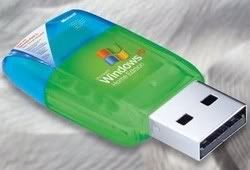
windows live usb edition..


Windows Live USB Edition
Ever want to boot up into Windows XP via a USB memory key?
Well, now you can !!!
This is a miniature version of Win XP
Just enough to get you up and running so you can restore from backup, access your files, or do whatever you have to do
Size - 60.4 MB packed and 152 MB unpacked

download link:
http://www.filefactory.com/
dlf/f/b0bdad/b/8/h/4352a83cd75431c507fb75a79713ba3c/j/0

antiporn v9.1.3.29 download


Antiporn v9.1.3.29
Anti-Porn parental controls has blocked ten thousands of porn websites, and it allows you to predefine websites you don't let kids visit by yourself. It always filters any porn website, which appears recently. Anti-Porn parental controls check the whole contents of webpage quickly, and will close the forbidden webpage before kids see it. It limits your kids to use popular chat software and access to major chat rooms. You can easily assign Internet access time at certain hours, even on specific day. It is very easy. This program provides history log and screen log to you. You can use these logs to watch all websites that your kids visited, filtered out or not. It makes screen snap every certain interval, which you set. This program also provides password protection to make sure that anyone can't close Anti-Porn parental controls without parental password.

download link:
http://rapidshare.com/files/82505210/Antiporn_9.1.3.29.TiT.rar

dOwNlOaD monopoly 2008 from rapidshare


Monopoly 2008 - Thinstalled
WinAll | Rar Recovery | 20.4 MB

An Updated Classic Returns: Monopoly Purists Rejoice! It’s the World’s Most Popular Board Game brought to life! Acquire wealth by buying and developing the Monopoly properties you know and love.
It's all about money - and making more of it than your opponents...

Features
Cleverly Animated Tokens, Bright 3D Graphics, New Music, Enhanced Faster Moving Gameplay
Multiplayer Mode with up to 4 Friends or Play against up to 3 Computer Opponents with an advanced A.I.
3 Opponent Difficulty Levels: First Time Buyer, Entrepreneur and Tycoon.
Limitless Replayability and Fun and Addictive Action for Everyone!


download link:
http://rapidshare.com/files/88598776/M08.rar

Sunday, February 3

hOw To KeEp YoUr EmAil mOrE pRiVaTe..

To avoid e-mail address harvesting practices, it's important to not post (in text) your e-mail address in public Internet chat rooms, on any Web site, newsgroup, guestbook or blogs to which you post. If you find you need to post an e-mail address, try typing your address in a graphics program and using an image of your address in a signature file or attachment. Or, you can also replace common characters (such as the @ or .) with spaces or spelling. For example, writing your address as
"webmaster — at— webopedia —dot— com" is one way to display your e-mail address so humans can understand it, but software or script harvesters cannot grab it and add it to a spam list.

You can also consider encoding your e-mail address by using its equivalent decimal entity. To people viewing the address in a browser, it appears as normal text. The code, however, consists of character entities and unreadable to many harvesting scripts (example e-mail address encoder). If you plan to take part in online forums or newsgroups, or you plan to join different mailing lists, you can always register for a free online Web mail account. This will help filter the bulk of spam from publicly posting your e-mail address to one e-mail account that is not used for family, friends or work-related communications. It doesn't mean your other accounts won't get spam, but it will help you time-wise by enabling your other account to have less spam build-up.

sPeEd Up ApPLiCaTiOnS iN xP..

The tweak I am going to describe below increases system stability by instructing the operating system to separate processes for each instance of an application. In other words if you have three Internet Explorer windows open and one of them crashes it will allow you to close out that crashed instance of Internet Explorer without affecting the other two. I consider this to be a life saver because I run multiple instances of Internet Explorer a lot of the time as well as a performance boost that you gain from this tweak. Below you will find the steps necessary to accomplish this. As always comments/suggestions are welcome.

Note: This tweak is only recommended for users with more than 512MB of RAM, the reason for this is the extra use of memory due to separate processes.

1. These tweaks require that you venture into your registry, please backup your registry.

2. Go to Start > Run when the Run box opens type in regedit

3. Your registry should have opened [Just checking...have you backed up your registry?] Navigate to the following keys; HKEY_LOCAL_MACHINE > System > CurrentControlSet > Control > PriorityControl

4. When you get to PriorityControl click on it, the pane to the right should have a listing of several keys, double-click on;

>Win32PrioritySeparation, change it to '00000026' which is 38 in hexadecimal (changing this optimizes the priority control for processes)

5. Under any explorer window, My Computer, My Documents, etc. Go to Tools > Folder Options

6. A Folder Options dialog box opens, click on the View tab and under Advanced Settings scroll down until you find Launch Folder windows in a separate process.

7. Make sure to check Launch Folder windows in a separate process, click OK

8. Once you've changed these settings restart your computer and your settings should have taken effect.

mAkInG sTaRt MeNu LoAdS fAsTeR........

I just hate it when I click the Start menu and it takes forever to load, so I started looking around and found that by changing a single number in the registry you can essentially decrease the amount of time it takes for the menu to load. Below you will find the steps necessary to make your Start menu load faster

1. These tweaks require that you venture into your registry, please backup your registry.

2. Go to Start > Run when the Run box opens type in regedit

3. Your registry should have opened [Just checking...have you backed up your registry?] Navigate to the following keys; HKEY_CURRENT_USER > Control Panel >Desktop

4. On the pane to the right double-click on MenuShowDelay, it should open up a dialog box with a set value (it should be 400), change that value to 0.

5. Click OK, you're done

optimizing windows xp for better gaming......

I find myself constantly giving out the same advice on optimizing Windows XP to play games. I thought it was about time that I put my game optimization tips together and post them up on the web. The following game optimization tips should help you get the most performance out of your PC with as little effort as possible.

This guide starts out with some very basic tips and then moves on to the more advanced ones. The advanced tips are not for the faint of heart as I recommend things like disabling various services for increased performance.

Note: The author assumes no responsibility for any damage or data loss that you might inflict on your PC as a result of following these tips.


Tip #1: Clean the adware and spyware off of your PC.

Some websites and many freeware programs will install a wide variety of programs onto your PC. None of these programs has any positive benefit and most will adversely affect your PC. Ridding your computer of this rubbish is the first logical step in improving the performance of your PC

There are entire web sites devoted to helping people clean various spyware and adware programs off of their PCs. I feel it would be a tad redundant of me to try and include any meaningful tutorial on adware detection and removal in this guide. What I will do it point you towards the program that most people use for detection and removal of these troublesome programs.

The program that I recommend is Ad-Aware:
http://www.lavasoft.com/

The Ad-Aware personal edition is free of charge. Most people run this on a regular basis and you should too.


Tip #2: Increase your physical RAM to epic proportions.

Most 3D games these days can benefit from the addition of more memory to your PC. A full 2 GB of RAM is not considered to be an unreasonable amount. Be sure to adjust your paging file if you do increase your RAM. (See Tip #5 below for details on paging file configuration.)

Whenever I suggest to peeps that they should get more RAM, they most often ask where they should buy it from and what type to get. I have a link for a website that answers both questions:
http://www.crucial.com/

I have purchased all of my RAM from these guys for the past seven years. The website has a "memory advisor" tool that will help you find the RAM you need. Their prices are competitive and the RAM is guaranteed to work in your system. It doesn't get much better than that.


Tip #3: Defragment your hard drive regularly.

As files are created and deleted on your hard drive they may be written to non-contiguous clusters. This is know as hard disk fragmentation and it can have a significantly detrimental effect on your computer's overall performance. Fortunately it is quite easy to correct this.

You can access the hard drive tools built into Windows XP by double clicking on the My Computer icon and then right clicking on the drive you wish to defragment and selecting it's Properties. On the hard drive properties page, select the Tools tab and then click on the Defragment Now button.


This will bring up the Disk Defragmenter window. Select the drive that you wish to defragment and click on the Defragment button. The disk defragmenter will analyze the drive and tell you that you don't need to defragment your hard drive. It's lying, tell it to defragement your hard drive anyway.


Depending on your hard drive size and the level of fragmentation, defragmentation may take several hours to complete. For most people it is probably best to leave the PC deframenting overnight.

One other item worth mentioning: You will need at least 15% of your hard space free in order for disk defragmenter to do it's thing. Personally I find this to be a rather high figure. If you get really desperate to free up space you can turn of your paging file completely before defragmenting. Be sure to set it up again when you are done!


Tip #4: Turn off unnecessary programs that run at start up.

Some people seem to have an almost endless list of programs that run at startup on their PCs. With all that crap running in the background, it is a wonder they can get their games to run at all. Stopping these programs from running in the first place is a good place to start.

From the start menu, click on the "Run..." menu choice. Type in "msconfig" (without the quotes) and press enter.


This will bring up the System Configuration Utility. On the "General" tab, select the "Selective Startup" option.


Change the System Configuration Utility to the "Startup" tab. This will show you all the programs that are set to run as soon as Windows starts up. You should strive to keep this list as short as possible.

This is my current startup list:


As you can see, I have just four items that run at startup. From top to bottom they are: mouse driver extensions, nVidia controll panel, Zone Alarm firewall and the Avast anti-virus service. Everything else has been turned off so it does not run at startup. (Note: My startup list used to be much longer. I went in and purged all the extraneous startup entries that were in the registry. The ones that you see in the image above are the ones that grew back in the last six months.)

To stop a program from running, clear the checkbox to the left of it's name. You can not harm anything by doing this. If you discover that you have turned off a program that you would rather have running, you can always change it back.

There may be programs in your startup list that are needed for various bits of hardware that you have connected (or occasionally connect) to your PC. (Digital cameras, scanners, etc.) These programs are only needed when you are actively using that hardware. I recommend shutting these off at startup and then running them manually as needed.

When you are done configuring the start up list, click OK to close the program and reboot your PC. After rebooting, Windows XP will display the following useless dialog:


Be sure to check the "Don't show this message..." option before clicking OK. Otherwise the System Configuration Utility will be launched and on the next reboot you get the same dialog again.


Tip #5: Change your paging file to be permanent and the correct size.

Even if you have a huge amount of physical RAM, Windows XP needs a place to temporarily store excess data. That place is called the paging file. Setting up this file to be non-dynamic and unfragmented is another good way to increase your PC's gaming performance.

Straight out of the box, Windows XP has a dynamic paging file. The size of this file is suppose to grow and shrink as needed. There are several problems with a growing and shrinking paging file. I will attempt to explain these briefly without being too technical.

Expanding and contracting the page file takes up some of your limited computing resources. Windows XP will make the file larger or smaller quite often. This requires a certain amount of hard drive access and CPU cycles to accomplish. In theory, Windows is supposed to do this when the PC is "idle". In reality, Windows does this any old time it wants, application performance be damned.

The second issue with dynamic paging has to do with paging file and hard disk fragmentation. As you use your PC, files are created, expanded and delete frequently. This can lead to hard disk fragmentation. With a dynamic paging file, the paging file itself can become heavily fragmented as it expands and contracts around the various file fragments on your hard disk. The more fragmented your paging file is, the worse the performance will be when it is used. Even if you defragment your hard drive regularly, some paging file fragmentation will inevitably occur with a dynamic paging file.

The first step to creating a permanent, unfragmented swap file is to delete your current swap file and then defragment your hard drive. When you create your new swap file, you want it to be one large contiguous piece on your hard drive. The only way to accomplish this is to clean up the current mess.

You can get at the virtual memory settings through the System applet on the control panel. On the System Properties dialog, switch to the Advanced tab. Under performance on the Advanced tab, click on the settings button.


On the Performance Options dialog, switch to the Advanced tab. Under Virtual Memory on the Advanced tab, click on the change button.


On the Virtual Memory dialog, turn off the paging file for each drive that may have one (normally you should only have one, but you can span your page file across multiple drives). For each drive with a paging file, select the No Paging File option button and then click on the Set button to the right.


When you click on the OK button, you will get a stern warning about letting Windows manage virtual memory. Tell the warning to buzz off and reboot your PC.

Note: Your PC might very well run like crap with no paging file, especially if you have less than 1 GB of RAM. Don't worry about that for the time being as we will be creating a new swap file soon enough.

At this point you need to defragment the hard drive that you are going to be creating the paging file on. See tip #3 above for details on defragmenting your hard drive. Once your hard drive is defragmented, work your way back to the Virtual Memory dialog in the system applet as described above. This time we are going to be creating a new permanent swap file.

Select the drive that you just defragmented in the previous step. Under "Paging file for the selected drive", select the Custom Size option. Enter an initial size and a maximum size that are IDENTICAL. This is the key to creating a non-dynamic paging file.


How big should big paging file be? That is dependent on how much RAM you have and how much hard space you are willing to give up. Microsoft generally recommends that you have a paging file that is 1.5 times as large as your RAM. Most experts tend to think this is a tad on the low side. My advice is to create paging file that at least twice as large as your system's RAM. At the other extreme, I do not recommend creating a swap file that is larger than four times your systems RAM. (My current paging file is currently set at 4 gig and I have 1 gig of RAM. When I upgrade my RAM to 2GB I will not be increasing my paging file size.)

The numbers entered into the custom size files are in megabytes (MB) of hard drive space. The following table will help you convert from gigabytes (GB) to megabytes:
1 GB 1024 MB
1.5 GB 1536 MB
2 GB 2048 MB
2.5 GB 2560 MB
3 GB 3072 MB
3.5 GB 3584 MB
4 GB 4096 MB


EXAMPLE: If you have 1 GB of RAM, the minimum value you should enter into both boxes is 2048. This will give you a 2 GB permanent paging file.

One other note: The sizes entered into the custom size fields are usually a multiple of four (i.e. a number that can be divided by four evenly). I would not recommend using any values that are not a multiple of four.

After you have entered the minimum and maximum paging file sizes, click on the Set button and then click OK. Once you have rebooted you should have a non-dynamic paging file that won't get fragmented over time.


Tip #6: Turn off unnecessary services to free up system resources.

This is by far the most extreme tip on my game optimization page. Windows XP ships with a large number of services enabled by default. Many of these services are of absolutely no use to the home computer user. All they do is take up space and CPU cycles that could be put to better use by other applications.

I am going to start with a word of caution. Don't start disabling services at random. You can totally mess up the operation of your computer and possibly make Windows XP unusable in the process. There are many services that are critical to proper operation of Windows XP.

The first thing you need to do is bring up the services control panel applet. Using the Run option on the Start Menu, type in "services.msc" (without the quotes) and press enter.


The services applet shows all of the services that are installed on your computer. We are going to be altering the Startup Type for some of the services in that list. This is most easily done by right clicking on a service and selecting the Properties menu choice. This will bring up the Service Proprties dialog


To disable a service from this dialog, select Disabled in the Starup Type drop down box and click Apply and then OK. That is all there is to it. The next time you start up Windows that service will not be started.


The following is a list of services that I recommend disabling and the reasons why they aren't needed. All of these services are set to run automatically by default. I have had all of these disabled for over two years with no ill effects.


Clipbook

This service allows the Clipbook Viewer application to share information between computers. If you use Clipbook Viewer and like to cut and paste between computers, by all means leave it running. If you have no idea what Clipbook Viewer is and/or you have only one XP machine on your home network, this service is of absolutely no use to you.

Distributed Link Tracking Client

This service helps maintain distributed links to NTFS files across domains. Since I don't have a domain controller or any files with "distributed links", I could never find any use for this service. Disable it and you will never miss it.

Error Reporting Service

Pops up a dialog when a non-Microsoft application crashes, asking if you want to send a report to Microsoft. I can't see where there is any benefit in leaving this running. Note: Internet Explorer and other Microsoft applications have there own Error Report dialogs, so you will still see those even with this turned off.

IPSEC Services Service

Provides secure TCP/IP data transfer and encryption operations on a domain. Since I don't have a domain controller and I don't use secure/encrypted TCP/IP on my home network, I don't need this.

Messenger

This service allows messages to be sent to the user of a remote computer. It was responsible for much user annoyance when Windows XP first shipped. Spammers were using this to send popups messages to XP computers that were connected to the internet, even if they had no web browser running. I would hope that everyone has this disabled by now.

Note: This service is NOT related to the MSN messenger or Windows messenger chat programs. If you have windows XP professional with service pack 2 installed, the service should already be disabled.

Remote Registry Service (XP Pro)

Allows applications to access the registry on another computer. I have used this back when I was a Windows NT network administrator. I could make changes to the registries on other PCs in my domain remotely. I can't see any possible use for this at home however.

Themes

To be honest, I have no idea why themes required a service. I have this disabled because I consider themes to be fluff. If you use themes on your computer, then I guess you need this. If you aren't using themes then this isn't providing any benefit to you and it should be disabled.

Windows Time Service

Maintains date and time synchronization on all clients and servers in the network. The computers get this time from a network server, usually a domain controller. If you don't have a server on your network to get the time from, this service is of no use to you.

Wireless Zero Configuration Service

Provides automatic configuration for the 802.11wireless network adapters. If you don't have any wireless devices, this service isn't doing anything.